Picsart AI Expand for Profile Photos: Guide
Fit a tightly cropped headshot to a new ratio: try a plain crop or border first, then expand as little as possible with Picsart AI Expand and check the edges.
If a tightly cropped headshot does not fit a new aspect ratio, try an ordinary crop or a plain border first. Use Picsart AI Expand only when you need more background, expand as little as possible, and check the new edges closely. Expansion invents new pixels around your photo. It does not recover what the camera missed, and it should never change you.
By the Lumatch team. Sources read on November 15, 2026. Picsart AI Expand is a third-party tool. It is not a Lumatch feature, Lumatch has no integration with it, and we have not signed up, uploaded or generated anything with it.
What Picsart's page says
According to Picsart's AI image extender page, you upload an image, choose a size from aspect-ratio presets, and the tool extends the picture. A custom option lets you describe what should fill the new space. The page says you can try it with a limited number of free expands and that more expansions need a subscription.
Prices, promotions and free allowances on that page vary and change, so check it yourself before relying on them. We do not quote a fixed price here.
Try the simple fixes first
- Work on a copy. Keep the original file untouched.
- Look for the uncropped original. Your phone or camera may still have a wider version of the same photo. A real wider frame is preferable to an invented one.
- Try an ordinary crop. If the new ratio is narrower or shorter than the photo, a crop may be enough.
- Try a plain border. For an avatar or a square slot, a little even padding in a neutral colour is honest and often looks clean.
Only if none of these works is it worth generating new background.
If you do expand: the smallest change that works
- Choose the exact ratio you need, such as the shape your dating app or social profile uses, rather than the largest available canvas.
- Expand the minimum amount. The more space you add, the more the tool has to invent.
- Add background, not body. The aim is space around you. Do not let the expansion stretch or extend your head, shoulders or arms into something the camera did not show.
- Keep any custom direction plain. Ask for a continuation of the existing wall, sky or room, not for a new place.
Kept area and generated area
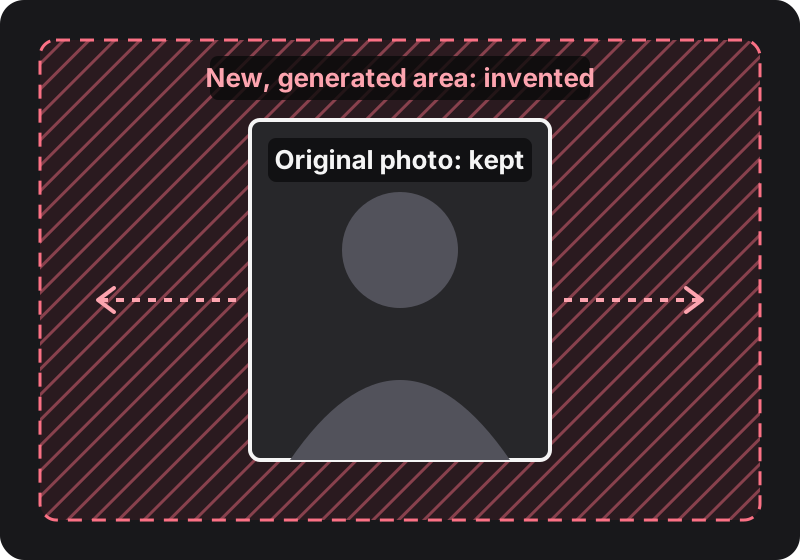
Original diagram, not a tool output. The centre is your real photo. Everything in the shaded border is new, generated content.
Everything inside the original frame comes from your camera. Everything outside it is a guess. The tool cannot know what was really beside you, so treat the new strip as decoration, not as part of the scene you were in. Do not use an expanded background to suggest a place, event or view you did not see.
Zoom in, then shrink down
At full size, check these areas, where expansion most often goes wrong:
- Hair: the outline of your hair continues naturally rather than turning smooth, blurry or cut off.
- Ears and jaw: edges near the old border have not been redrawn.
- Shoulders and clothing: the line of your shoulders and collar continues at the same angle and size.
- Repeated objects: the same lamp, plant or window does not appear twice.
- Fake text: signs, posters and book spines do not contain made-up letters.
- Light: the new area is lit from the same direction as the original.
Then shrink the image to the size of a profile thumbnail. If your face is now smaller or less clear than before, the expansion has made the photo worse, however natural the edges look.
Dating app rules
Dating apps set their own rules for edited and AI-generated images, and those rules change. This guide does not add new claims about any app. Our guide on whether AI dating photos are allowed covers what some dating apps have published, and the best dating profile photos covers which shots to lead with.
Where Lumatch fits
Lumatch does not include Picsart and does not offer pixel-precise expansion of an existing photo. It is a different workflow: its studio creates new candidate photos from at least one clear photo of you as an adult and a separate scene reference, with directions such as composition, pose, outfit and aspect ratio. The studio requires an account and uses credits.
If you only want to know whether an existing photo is clear enough, the free single-photo review gives AI feedback on lighting, framing and expression. It does not edit or generate images, and neither tool can promise more matches.
Common questions
Does AI expand recover the rest of my original photo?
No. It generates new pixels that fit the edges of your image. It cannot show what was actually beside you or the parts of your body outside the frame.
Should I expand or crop?
Crop or add a plain border first. Expand only when you genuinely need more background, and only by the smallest amount that gives the ratio you want.
Is Picsart AI Expand free?
Its page says you can try a limited number of free expands and need a subscription for more. Allowances and prices change, so check the current page.
Can I use an expanded background to show where I have been?
No. The new area is invented. Use real photos for real places and events.
Related guides
- AI portrait editing prompts for natural photos: what to keep, what to change and what to check.
Sources
- Picsart, AI image extender page (features, free tries and subscription note, read November 15, 2026): https://
picsart.com/ ai- image- extender/